
Harbor Watch app icon

See which apps go online, and decide who may

An outgoing network connection viewer and filter that lives in your Mac’s menu bar. For anyone who wants to know which apps reach the internet, and to allow or block each one with a switch. It also shows which computers on your network connect to your Mac. It follows your Mac’s light or dark setting.

Download for Mac Free · macOS 26 or later · Apple silicon
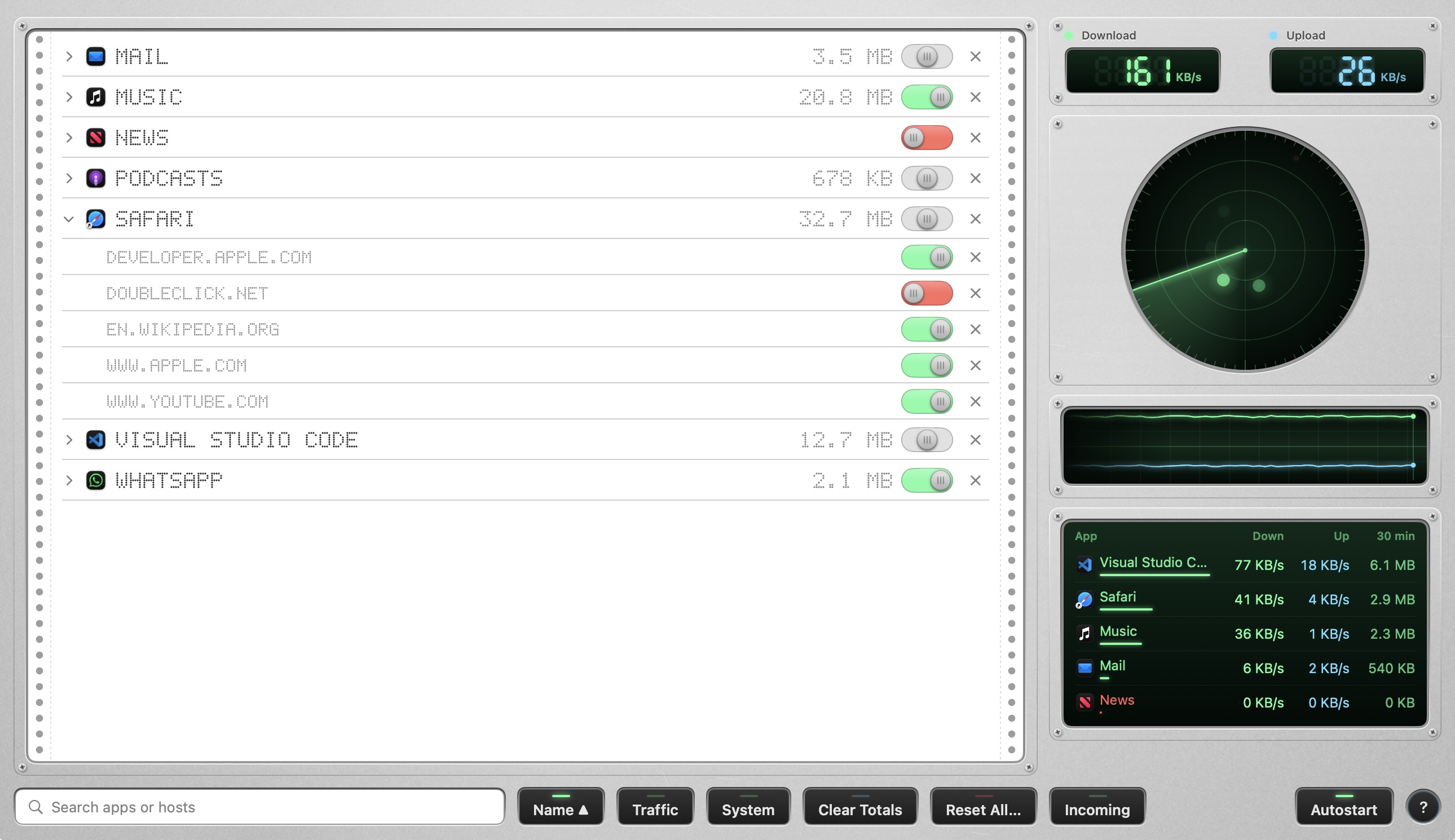
The Rules window: a list of apps printed on continuous-feed paper, each with an Allow or Block switch, Safari expanded to show its hosts. Beside it, download and upload speeds of 161 and 26 KB/s, a radar of the apps online, the last minute of traffic and the busiest apps. Along the bottom, search, sort and Incoming keys, with Autostart switched on.

Shown with sample apps, made-up traffic and sample home-network addresses.

Asked the first time an app connects

When an app you haven’t decided on opens a connection, Harbor Watch shows where it wants to go: the host, the port and the app’s signing ID. Allow or Deny saves a rule for that host. Allow All lets the whole app through from then on.

If you don’t answer within 10 seconds, the connection goes ahead, so a missed prompt never stalls your network. Apple’s own background services are let through without asking.

A prompt: Visual Studio Code wants to connect to marketplace.visualstudio.com on port 443, allowed in 6 seconds if you don't answer, with Allow All from Visual Studio Code, Deny and Allow keys.

Live traffic, one click away

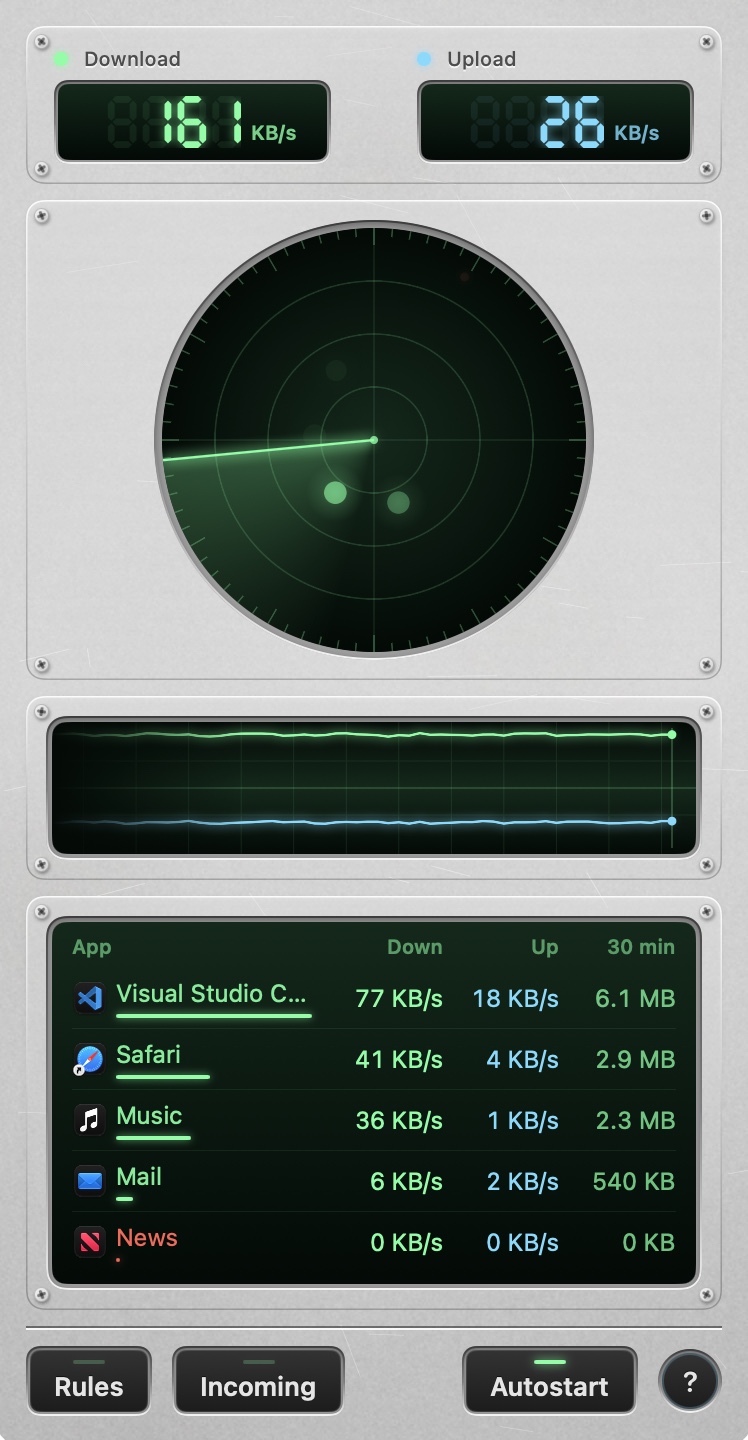
Click the shield in the menu bar for your download and upload speed, a radar of the apps online now, the last minute of traffic, and the busiest apps over the last 30 minutes.

Busier apps sit nearer the centre of the radar and draw larger. An app that was just blocked shows in red, and the shield turns solid for a moment. Rules and Incoming open the two windows.

The menu-bar panel: Download 161 KB/s and Upload 26 KB/s on segment displays, a green radar scope, a scrolling traffic trace and a list of Visual Studio Code, Safari, Music, Mail and News, with News in red. Underneath, the Rules and Incoming keys, and Autostart switched on.

One switch for each app

The Rules window lists every app that has connected, with its helpers counted as part of it. Slide an app’s switch right to allow everything it does, or left to block it. Left in the middle, Harbor Watch asks, except for Apple’s own apps, which go ahead unless you block them.

Search by app or host with ⌘F, and sort by name or by how much data each app has used.

Rules for Mail, Music, News and Podcasts: Music switched to allow, News switched to block, Mail and Podcasts left in the middle.

Or decide host by host

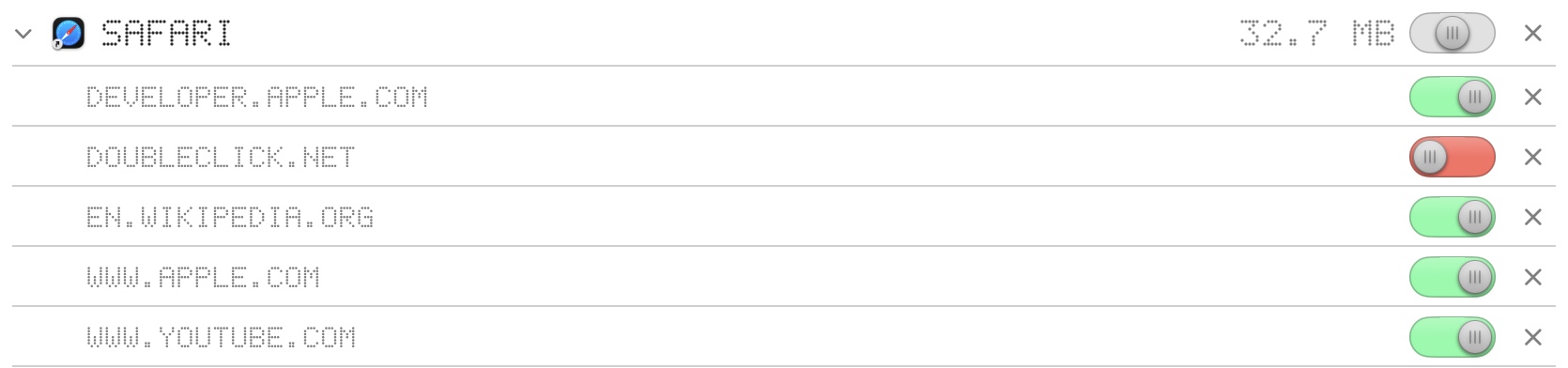
Open an app to see every host it has reached, each with its own switch. Let Safari reach the sites you use and block an ad server, without blocking Safari.

A host you haven’t set follows its app. The × removes a host or an app. If it connects again, it’s treated as new.

Safari opened to show five hosts: developer.apple.com, en.wikipedia.org and www.apple.com allowed, doubleclick.net blocked, and www.youtube.com allowed because Safari is an Apple app.

See who connects to your Mac

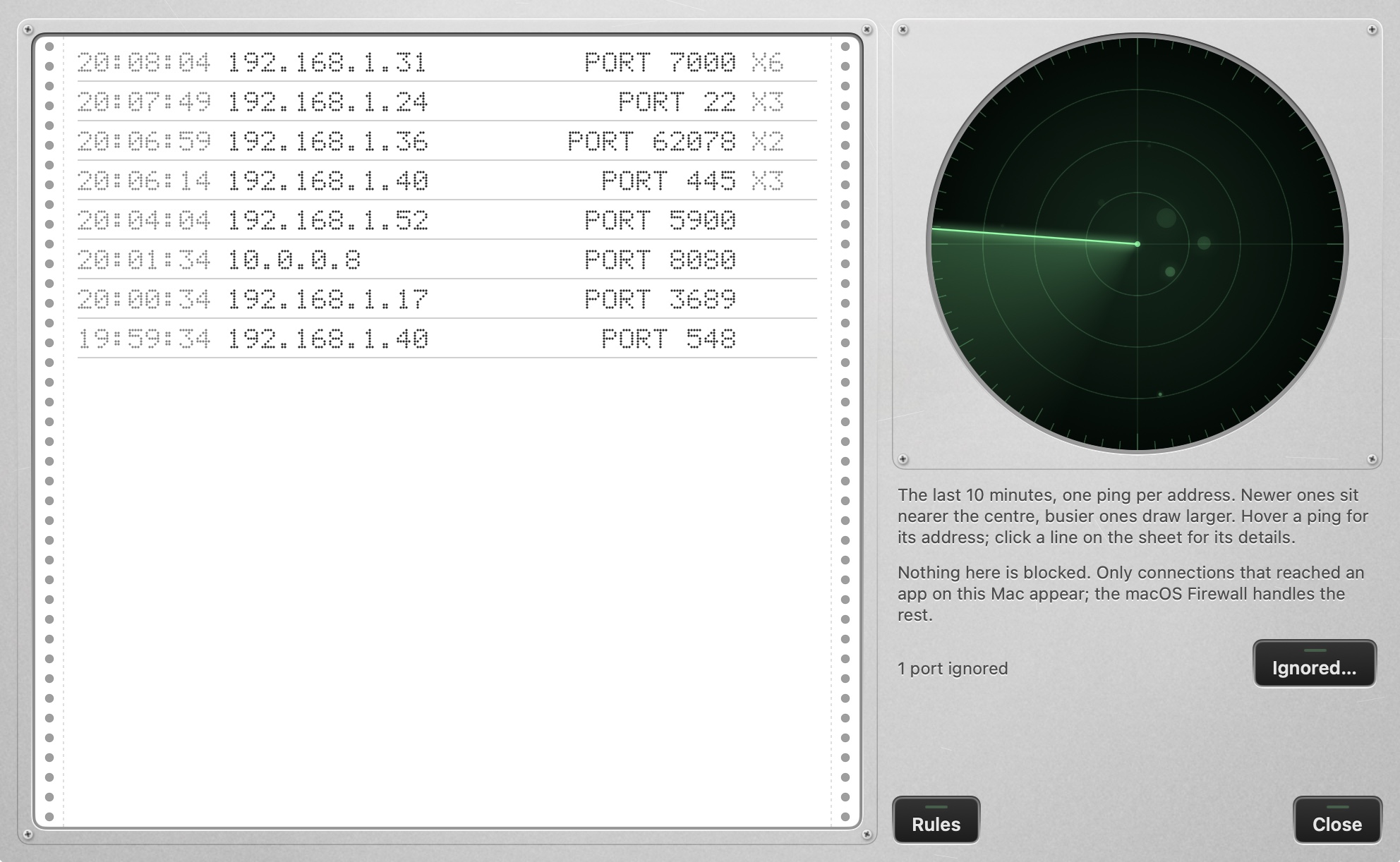
Press Incoming, in the menu-bar panel or the Rules window, for the other direction: every computer that reached an app on your Mac in the last 10 minutes, printed line by line with the time, its address, the port and how many times. A radar beside it shows the same addresses, newer ones nearer the centre.

Click a line to see what the port is for, which app on your Mac accepted the connection and, for common ones such as Screen Sharing, where to turn it off in System Settings. Ignore Port hides a port you expect, such as AirPlay. Incoming only watches: nothing is blocked.

The Incoming Connections window: a printed sheet of eight connections from home-network addresses on ports 7000, 22, 62078, 445, 5900, 8080, 3689 and 548, the busiest six times. Beside it, a radar of those addresses and a note that one port is ignored.

Made for your menu bar

Out of the Dock
Harbor Watch lives in the menu bar only. Press Autostart to have it running from startup.
Apps and their helpers together
A browser and its helper processes are one line, so one decision covers the whole app.
Quiet about macOS
Apple’s background services stay out of the way. Press System to show them in the lists and radar too.
Light or dark
The panel and windows follow your Mac’s appearance. The screens stay dark, like real instruments.
Stays on your Mac
No account. Your rules and the list of apps are kept on your Mac, and Harbor Watch doesn’t go online itself.
Remembers apps that have quit
An app stays in the Rules list after it closes, so you can decide about it later.

Download Harbor Watch

Free, from Teriannet’s Ko-fi page. Open the disk image and drag Harbor Watch into your Applications folder.

Download for Mac
System
macOS 26 or later
Processor
Apple silicon (M1 or later)
Setup
Allow the filter once in System Settings
Price
Free

Questions

Why does macOS ask me to allow an extension?

Harbor Watch sees connections through a network filter that macOS has to approve. The first time you open it, allow it in System Settings ▸ General ▸ Login Items & Extensions. Until then the panel shows Enable Filter.

What happens if I miss a prompt?

After 10 seconds the connection is allowed and nothing is saved, so Harbor Watch asks again the next time that app connects to that host.

How do I change my mind?

Open Rules and slide the switch for the app or host. The × removes it from the list, and Reset All deletes every rule. Anything removed is asked about again when it connects.

Does it see every kind of connection?

It sees TCP and UDP connections, which is what apps use to reach the internet. Ping (ICMP) doesn’t pass through the filter, so it doesn’t appear.

Does Incoming block anything?

No. It lists connections that reached an app on your Mac so you can see them. To stop them, turn off the sharing service named in the line’s details, or use the macOS Firewall.

Is it really free?

Yes. If you’d like to support it, donate on Ko-fi.